


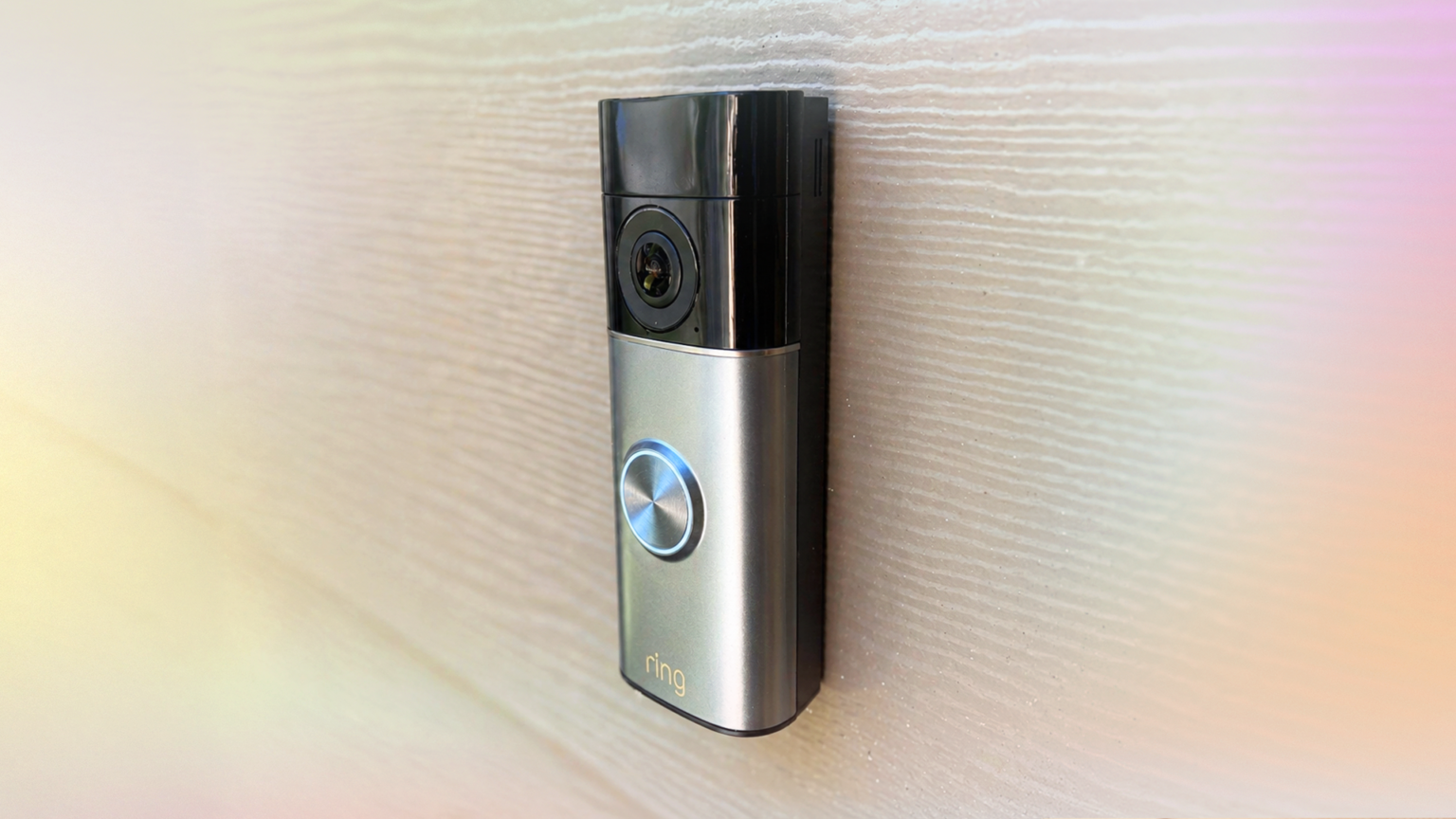
I’ve reviewed especially powerful, feature-rich Ring security devices this year, including its latest video doorbell and outdoor spotlight camera. But you may have also heard more disturbing news about Ring in 2026, including a hastily canceled surveillance partnership with Flock Safety and a lawsuit over possible privacy violations from its Familiar Face AI recognition technology.
That’s scary stuff, but I bring good news. You can turn off or opt out of all the Ring features people are worried about, at least on your own devices. The trick is knowing where to go and what settings to tweak, which is why I made this guide. Look below to see what surveillance options you may want to switch off and exactly how to do it.
1. AI Features
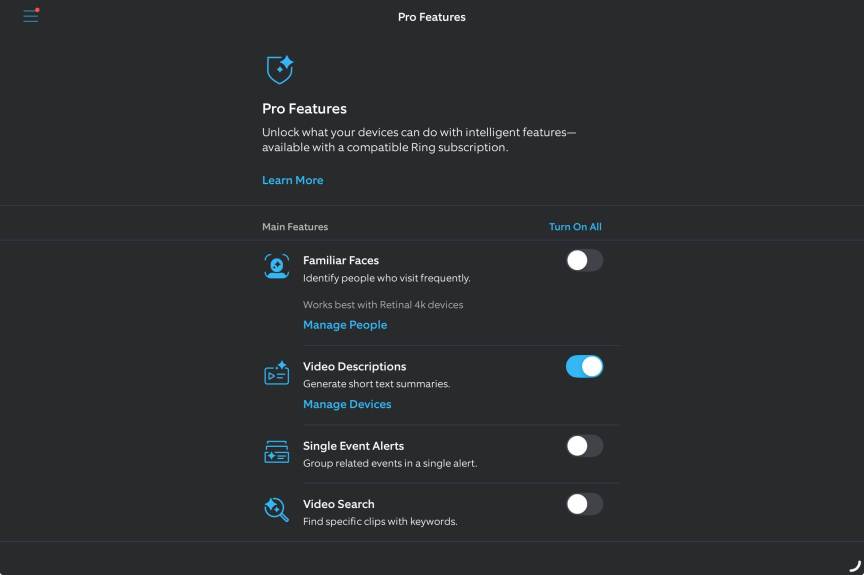
Ring uses AI in many forms, from creating time-saving text descriptions of videos to recognizing pets and even, if you choose to enable it, human features via the Familiar Faces feature. If any use of AI-like algorithms makes you uneasy about your privacy, you can turn them off entirely with one of Ring’s settings.
To begin, open the Ring app and head to the hamburger Menu > Pro Features (previously called AI features) > toggle Turn On All. This will turn off all applicable AI features, although not every feature I list below is affected, so it’s important to double-check.
2. Community Requests
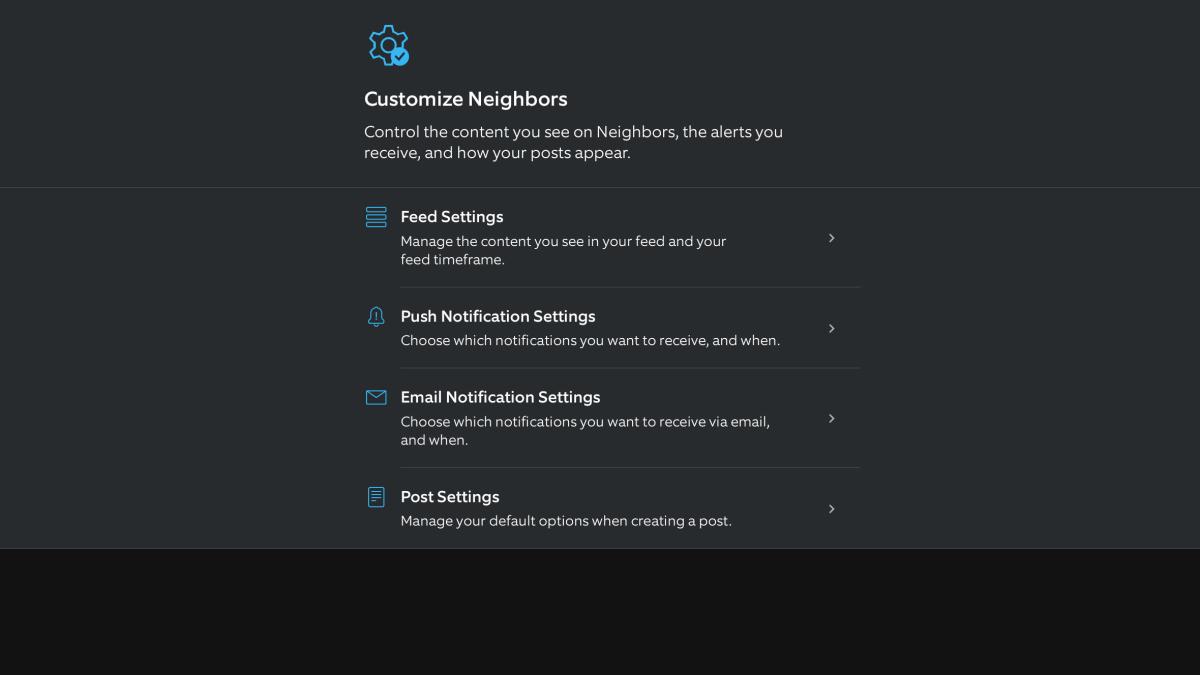
Stop law enforcement requests for Ring footage with this little-known setting.
Tyler Lacoma/CNET
Community Requests is the Ring Neighbors feature that allows others, notably local law enforcement organizations, to request footage on demand. There’s a lot I like about Ring Neighbors and how it lets you see what your community is experiencing, but this is one feature many users would rather do without.
To turn this off, head to the Menu > Neighbors > and choose the gear-like Settings icon. Find Neighborhood Settings > Feed Settings > Community Requests. Uncheck it to disable this feature. You can uncheck anything else you don’t want to hear about, either, including Community Engagement, Environmental Issues and more.
3. Search Party
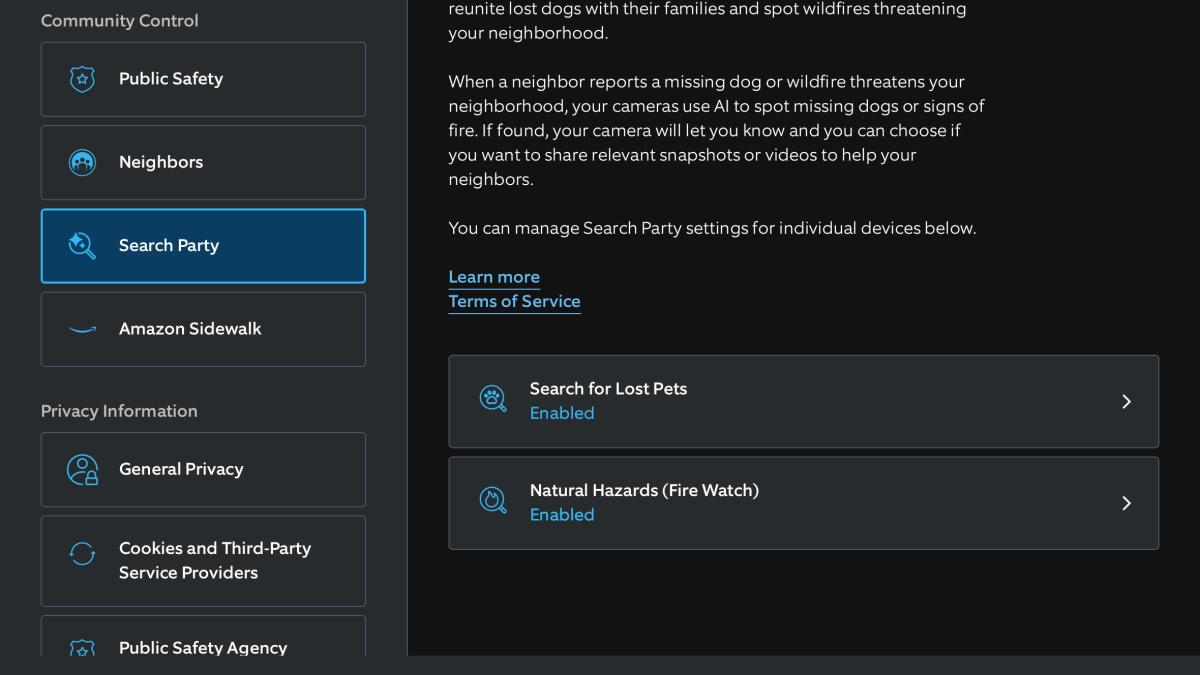
Opting out of Search Party only takes a minute.
Tyler Lacoma/CNET
Search Party is Ring’s unique pet-finding feature that allows members to send out requests for Ring devices to locate their lost pet, based on a profile picture that pet owners can upload. Ring’s AI then reviews recently uploaded video clips from the area and lets the pet owner know whether it has found a likely match.
However, many Search Party features are opt-out, meaning they are automatically enabled, and some users are worried that similar features could be used to track people, too, particularly if Ring leaks are legitimate. If that concerns you, it’s best to turn Search Party off entirely.
To start, head to the Ring app Menu > Control Center > Search Party. Look for the option labeled Search for Lost Pets Enabled, and select it to disable it. You can choose to disable the feature entirely or only for specific cameras.
4. Cloud video downloads

Ring’s Alarm Pro does offer local storage options if you want to invest.
Ring
With a Ring Protect subscription plan, your recorded security camera videos are automatically uploaded to the cloud. That makes video clips easier to access, but not everyone wants to trust Ring’s encryption or risk a data breach.
The easiest way to avoid cloud video storage is to cancel your Ring Protect subscription plan. The problem is that it doesn’t leave you any option to store videos at all, which is a really important feature for security cameras. The alternative is more expensive: Keep the Ring Protect subscription, add a Ring Alarm Pro Base Station ($250) equipped with a microSD card, and utilize Ring Edge to store your security videos locally rather than in the cloud. Ring has a guide on that here.
Keep in mind, there are cameras that come with built-in local storage and even include microSD cards, so you don’t have to make a separate purchase.
5. Amazon Sidewalk
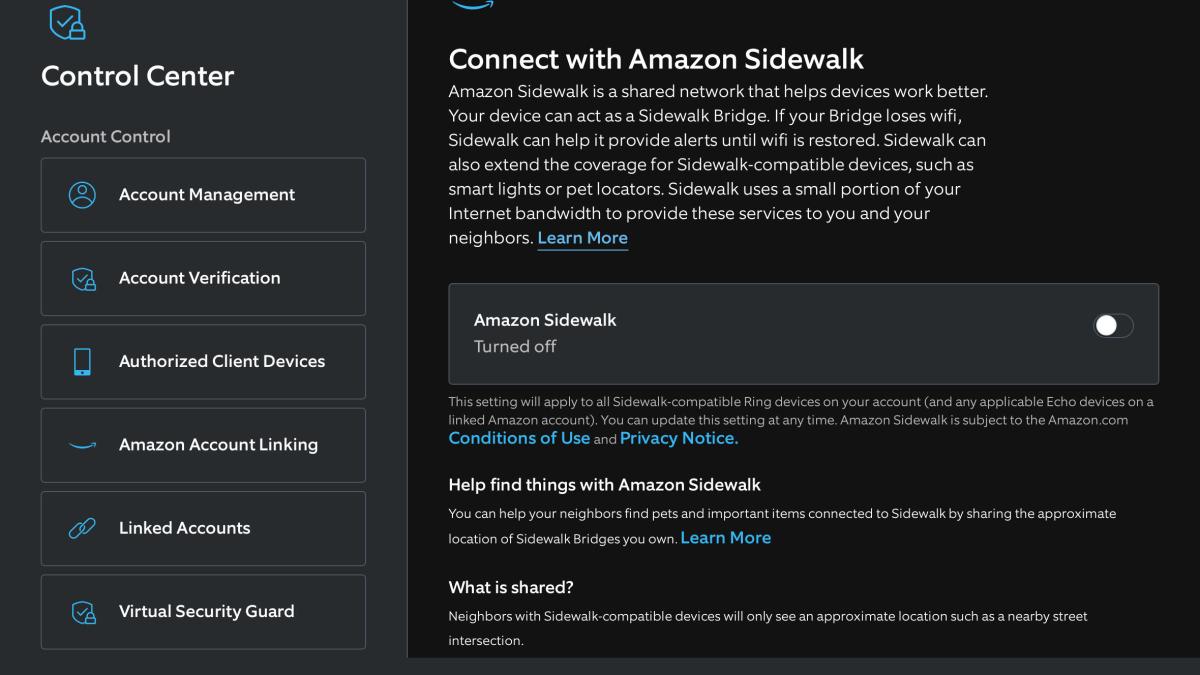
You can manage Amazon Sidewalk through your Ring app.
Tyler Lacoma/RING
Amazon Sidewalk is a connectivity feature that is, safe to say, fairly unpopular. It links your Alexa devices and compatible Ring devices in a shared network that lets passersby tap into a portion of your internet to enable location and finding features. That eats up your precious internet bandwidth while raising privacy concerns, so many people prefer to make sure it’s turned off.
You can do that in Alexa or stick to the Ring app and go to the Menu > Control Center > Amazon Sidewalk. Switch to the toggle to make sure it’s turned off if necessary.
6. Ring Neighbors
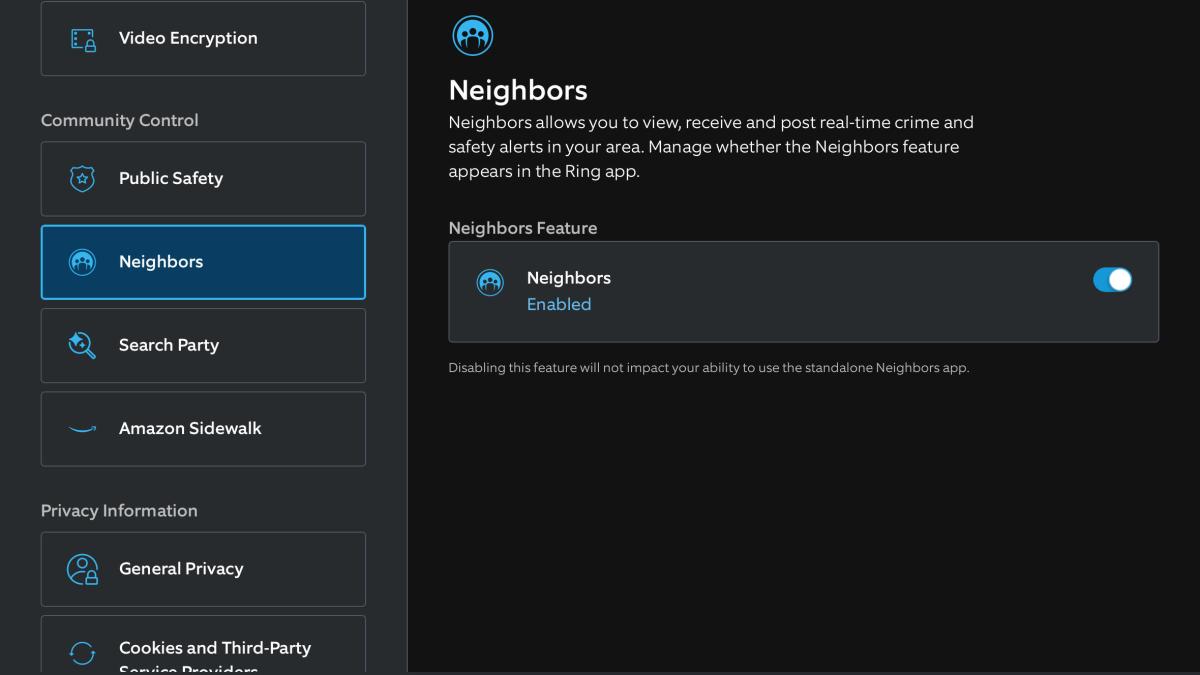
If you don’t care for Neighbors at all, you can turn off the whole platform.
Tyler Lacoma/CNET
As I’ve mentioned, I really like the community features of Ring Neighbors that enable people to work together to solve problems or at least share their concerns and get feedback. But if you find the whole concept annoying, you can shut it down entirely.
To do so, head to the Ring app Menu > Control Center > Neighbors. Here you’ll find a toggle to switch it off completely.
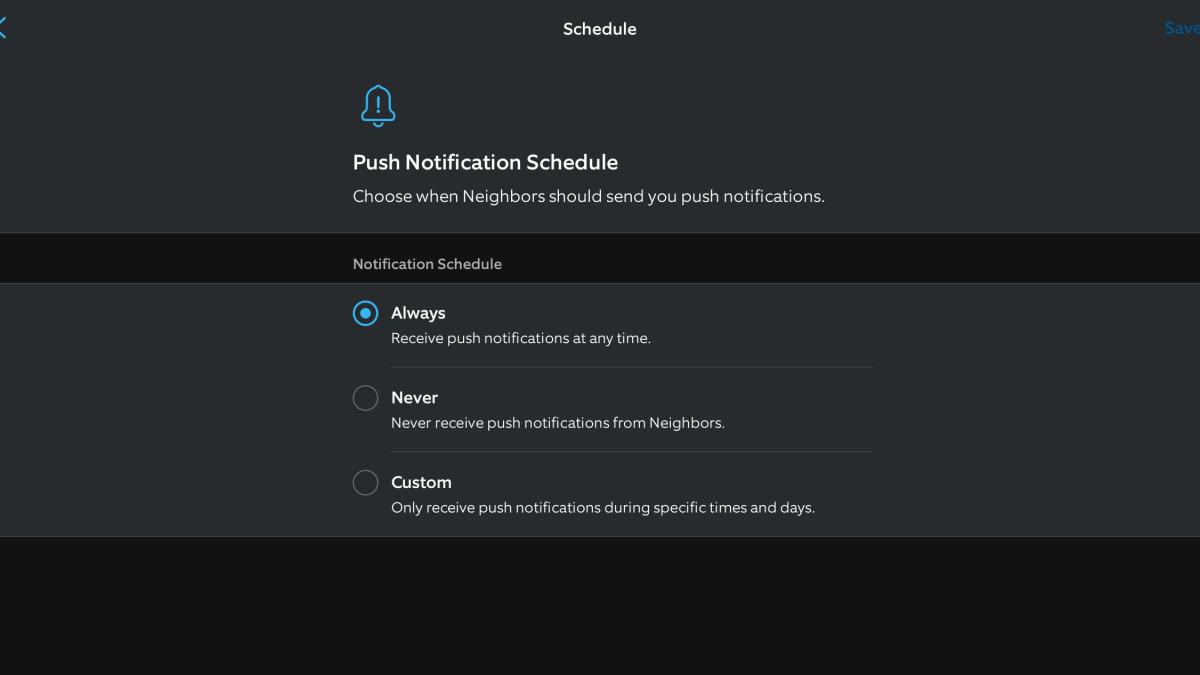
You can keep Ring Neighbors but limit the notifications you receive from it.
Tyler Lacoma/CNET
On the other hand, you could keep Ring Neighbors for on-demand information, and simply turn off the notifications so you don’t see anyone else’s posts. To do that, head to the Menu > Neighbors > Neighbors Settings Icon > Neighborhood Settings > Push Notification Settings > Push Notification Schedule. Select Never to turn off the notifications entirely. You’ll find options to turn off Neighbors emails in the same section.
7. Familiar Faces
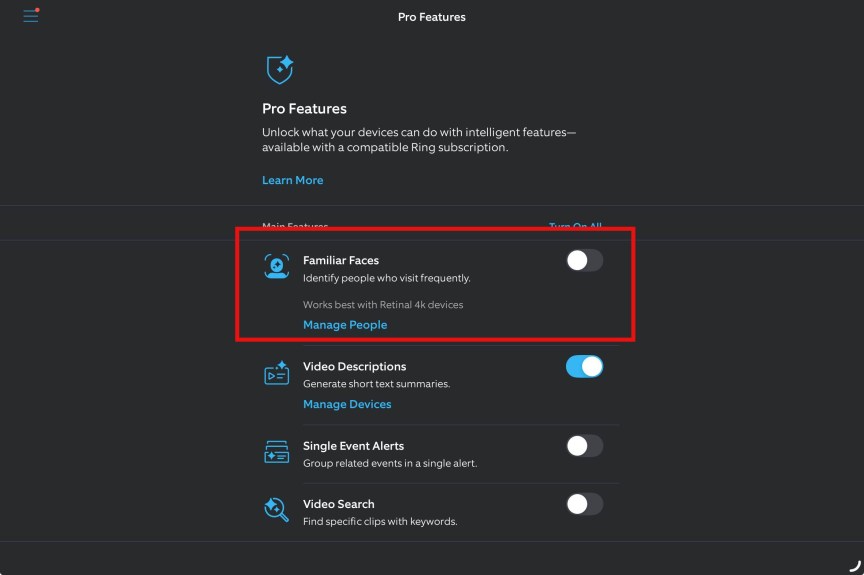
Familiar Faces is a technology that automatically identifies and saves face profiles in the Ring app for up to 30 days, giving you a chance to label family and others so Ring cameras will automatically recognize them. Ring is being sued for how this feature affects strangers, especially people walking by on the sidewalk who haven’t consented to having their face biometrics saved and possibly analyzed. But your friends and family may not be too keen on it either.
Familiar Faces is currently only opt-in, so it shouldn’t be enabled by default even when you purchase a Ring AI plan. However, if you want to make sure it hasn’t been switched on without you knowing, you can visit the AI section by going to Menu > Pro Settings > Familiar Faces to make sure it’s toggled off. Don’t worry, the lawsuits against Ring aren’t targeting the users of the tech, so you aren’t being held liable one way or another.
8. Fire Watch
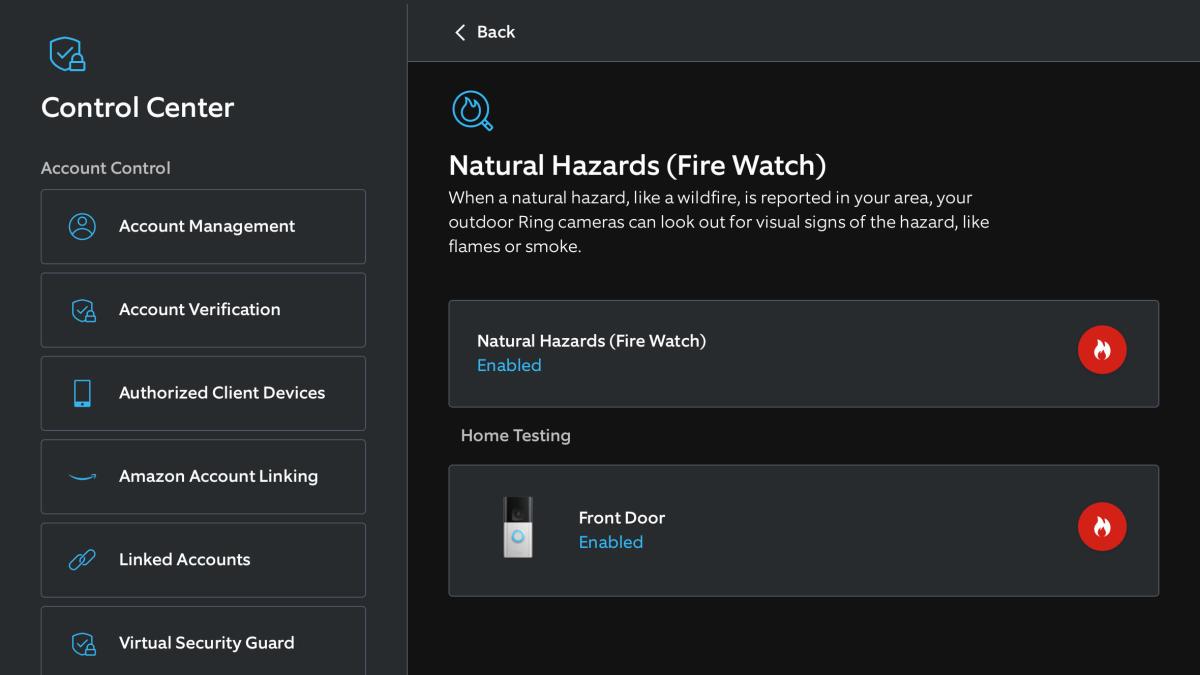
Fire Watch uses some of the same settings as Search Party, so users may want to disable it, too.
Tyler Lacoma/CNET
I live in a smoke-prone area of the West Coast and have enjoyed Watch Duty’s wildfire notifications for years, so I was happy to see a Watch Duty partnership come to Ring Neighbors with the new Fire Watch feature. Not everyone was so pleased.
Fire Watch taps into some of the same features that Search Party uses. It lets users know about nearby fires, but also recruits cameras in an opt-out (automatically enabled) service to analyze recorded videos for signs of smoke and fire using AI. As with Search Party, people can choose to share their images with Watch Duty, but the analysis happens either way.
If that’s also a step too far for you, you can turn off Fire Watch by heading to the Ring app Menu > Control Center > Search Party > Natural Hazards (Fire Watch).
I haven’t thoroughly tested this, but I think you still get Watch Duty fire alerts on the Neighbors app even with this setting off, since they likely fall under Wildlife And Environmental Issues in the feed settings. I’ll let you know if it doesn’t work.
9. Adjust your Neighborhood area
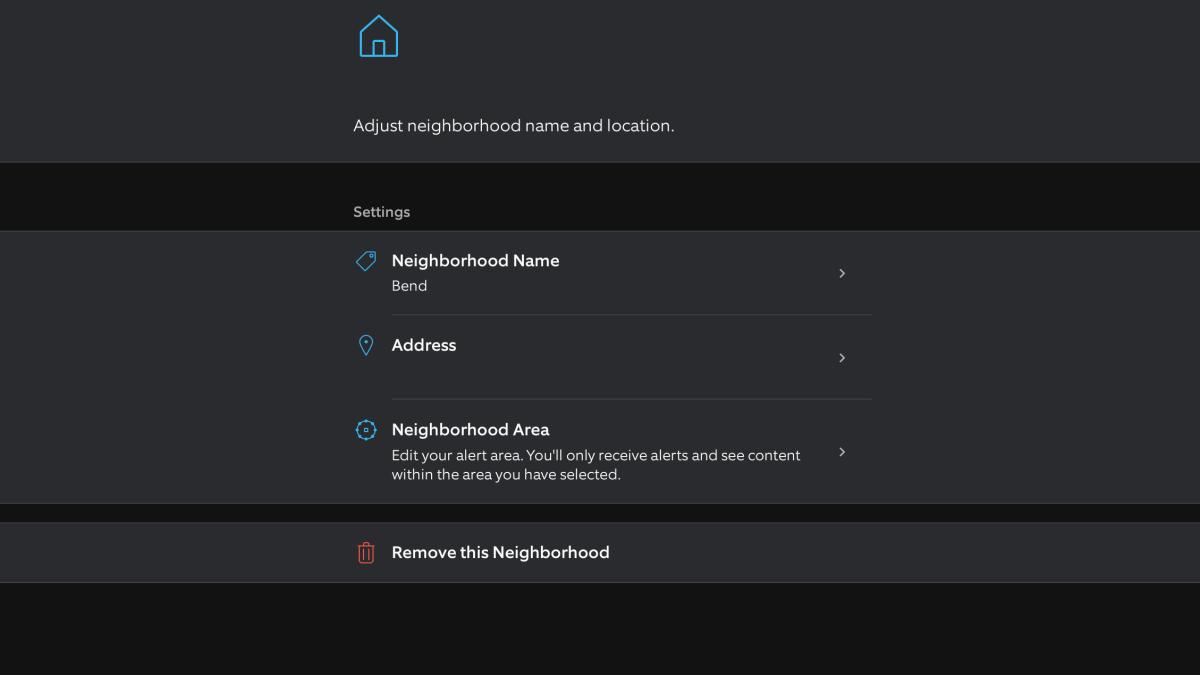
You can shrink the size of your Ring neighborhood to limit requests and analysis.
Tyler Lacoma/CNET
Your Neighborhood area determines which notifications and requests you receive based on what’s near your address. Depending on how active or large this area is, that could be way too much for you, especially if you’re trying to avoid many of the requests I’ve talked about above.
Fortunately, you can customize the size of your personal neighborhood to whatever size you want. To do so, head to the Ring app Menu > Neighbors > Neighbors Settings. Find your neighborhood and select Customize Neighborhood > Neighborhood Area. Here you can adjust your map to a smaller space.
For more privacy tips, check out the Alexa settings you should disable on an Echo device and how to wipe your home address off the internet.

See full bio
Read the full article here