


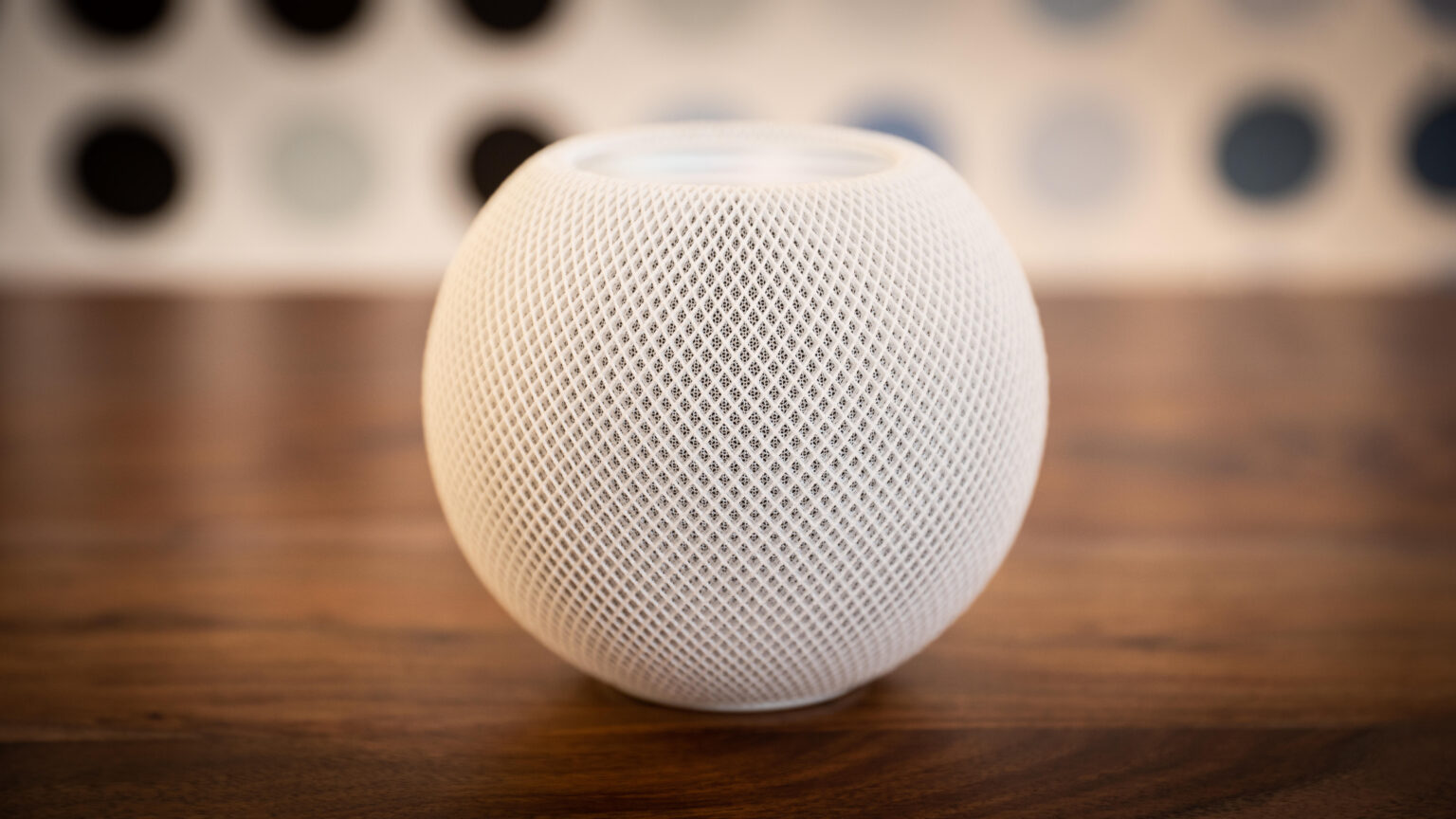
As more advanced Siri AI features start rolling out and Apple preps to release new smart home devices, it’s never been a better time to try Siri out in your home, but where should you begin? Whether you’ve got a HomePod, the Apple Home app on your phone or a similar option, I’ve got the “Hey Siri” voice commands everyone needs.
From my years of testing Apple devices at home, here are my favorite Siri orders and why they work so well. Think about adding a few to your list, too. And as Siri AI continues to expand into new areas, I’ll keep this list updated with the latest, most useful options so you’ll always know where to go.
Smart home Siri commands
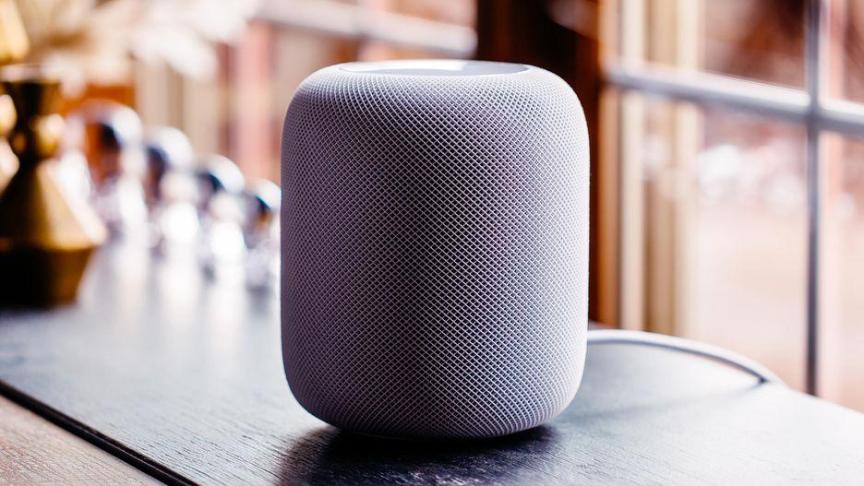
I use the Apple Home for everything from Ikea security sensors and smart locks to kitchen lights and bedroom lamps. Connecting a device to Apple’s home platform also means you can use your phone or a speaker like the HomePod mini to take control of it with Siri, no matter where you are. Try out useful commands like these:
“Hey Siri, turn on the heater” lets you control common smart appliances from afar.
“Hey Siri, turn off the kitchen lights” allows you to target a room for specific controls, as long as you’ve correctly labeled your smart lights in Apple Home (something I encourage). You can create as many rooms as you need, including offices, bedrooms, upstairs areas and whatever other label you need.
“Hey Siri, set the playroom smart lights to blue” gives you the option to adjust shades, and you can use similar commands for brightness, etc. Just make sure the lights have those capabilities in Apple Home.
“Hey Siri, turn the thermostat down by two degrees” gives you control over a smart thermostat, no matter where you are.
Pro tip: If you ever find one of these commands stops working, check for firmware updates and reboot both the brand’s own app, Apple Home and your phone or other device. You may need to reboot your Wi-Fi router, too.
Home security Siri commands
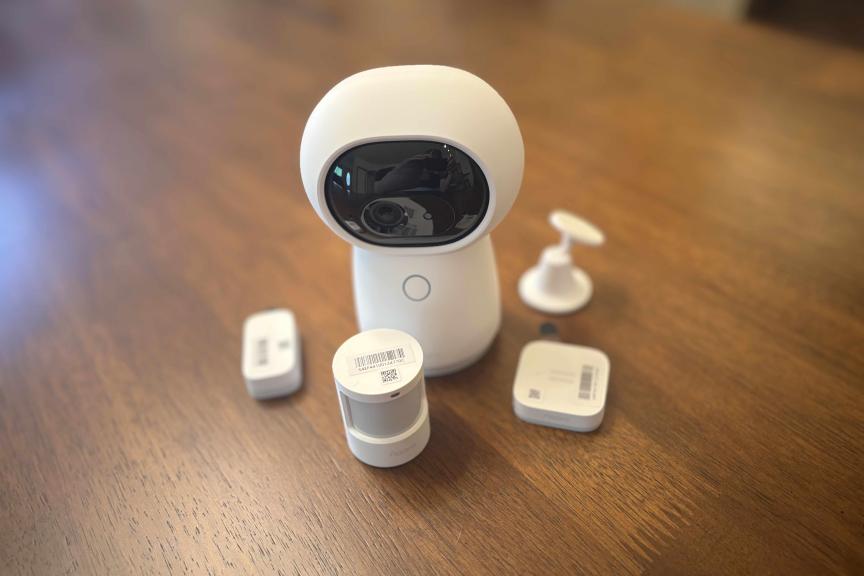
Aqara’s mini system is great for watching over small spaces and is Apple-compatible.
Tyler Lacoma/CNET
If you have a compatible security device, you can also give Siri orders to control it or learn more about how it’s functioning. This is a field that’s currently seeing quick growth as Apple is expanding Siri AI’s capabilities to more security cameras and similar devices, letting you use commands like these:
“Hey Siri, unlock the front door” is useful if you have a connected smart lock. Some of my favorite smart locks have excellent Apple compatibility, so this is a great place to begin using Siri around the home. If you don’t have autolocking, you can use Siri to lock the door on demand, too.
“Hey Siri, arm the security system.” Commands like these are handy if you’re heading out the door and want to arm quickly to save time.
“Hey Siri, show me the backyard camera” can display a live view in Apple Home, as long as your camera is supported.
“Hey Siri, show me the front door camera on Apple TV.” With the right Apple TV and Home compatibility, Siri can also show a camera feed on your TV screen if something goes bump in the night.
“Hey Siri, did the driveway camera see any deliveries today?” is an option rolling out with Siri AI, which is adding the ability to analyze home security videos via Apple Home. I’m still not sure how it’s going to work yet, but in a couple of months I’ll be able to try out this new tech, so it’s certainly worth noting for future use. If you’d like to see how those features work on other platforms, check out my reviews of the Blink and Google Nest cams, which have similar features.
Scheduling with Siri commands
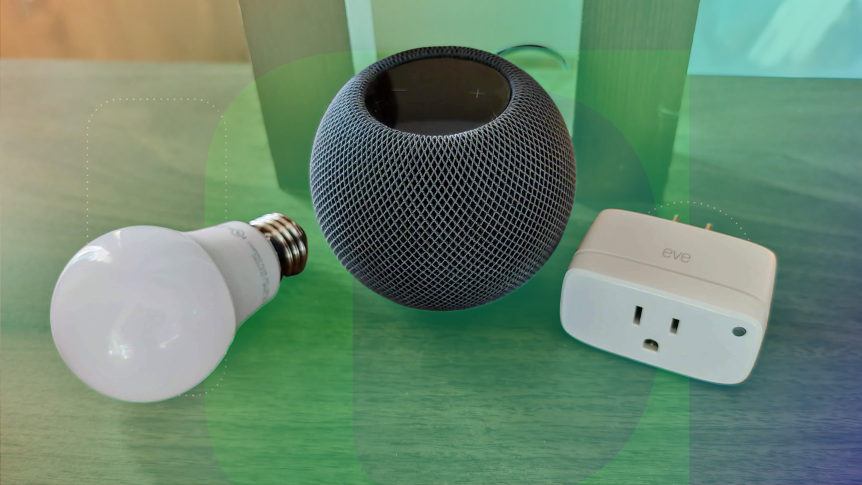
Not every order you give Siri has to be immediate. Just like setting reminders for the future, you can also tell Siri to schedule upcoming home changes to help you prepare for your day. Here’s what works:
“Hey Siri, lock the front door at 7 p.m.” lets you make sure the door will be locked before bedtime, keeping it open for now.
“Hey Siri, turn on the outdoor porch light at sunset” works because Siri is smart enough to know when sunset and sunrise are, opening up a variety of scheduling options.
“Hey Siri, turn off the home fan in 3 hours” works if any connected device you only want turned on for a certain period.
Siri home status commands
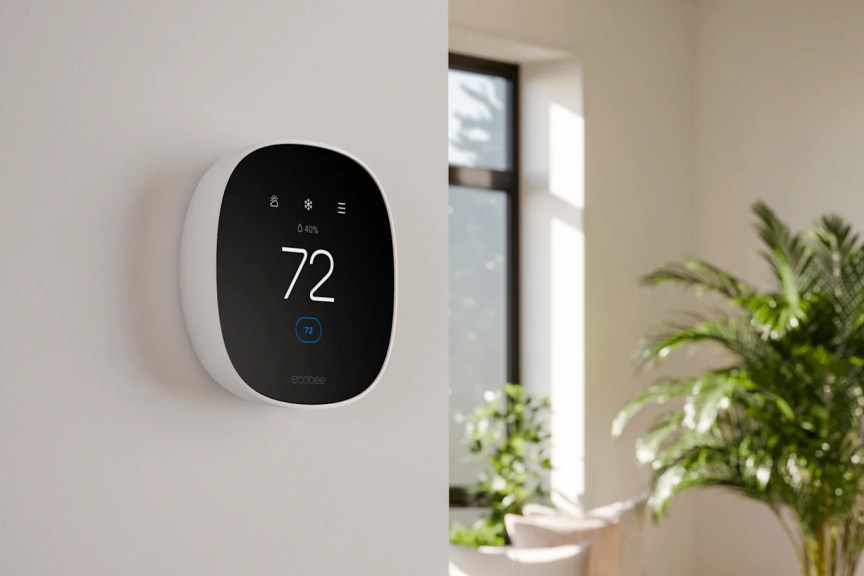
Not sure what’s going on with your smart home? Just ask Siri. These commands shine when you have smart versions of traditional home devices that you can update as you decide what you want to do.
“Hey Siri, are the lights in the living room off?” and similar commands can give you updates about the status of smart devices without needing to check.
“Hey Siri, did I close the garage door?” With the right garage cam or smart controller, Siri can also answer questions about doors, even if you’re far away from home.
“Hey Siri, what temperature is the kid’s room?” can work if you have a standalone temperature sensor or a smart thermostat in a specific room. Nest, Ecobee and other smart thermostat brands offer satellite sensors for this purpose.
Location commands for Siri

It’s not technically part of the smart home, but location requests are closely related, and a highly useful addition for keeping your family safe. These commands utilize data in the Find My app, so you’ll see the iPhones, AirPods, AirTags and other devices your family uses correctly labeled and identified with the right people in Find My before you begin. You must also turn on Family Sharing settings for everyone using this feature, and for some devices like AirTags, the user must share them with you in Find My.
“Hey Siri, where is [family member name]” will show you the location of whoever you name, as long as Family Sharing is on and they are labeled correctly in Find My.
“Hey Siri, where is [name’s] backpack?” works well if you put an AirTag in a bag, handy for students or busy workers. You could use this for pet collars too, but we recommend choosing a different tracker than the swallowable AirTags for pets.
Siri scenes and routines
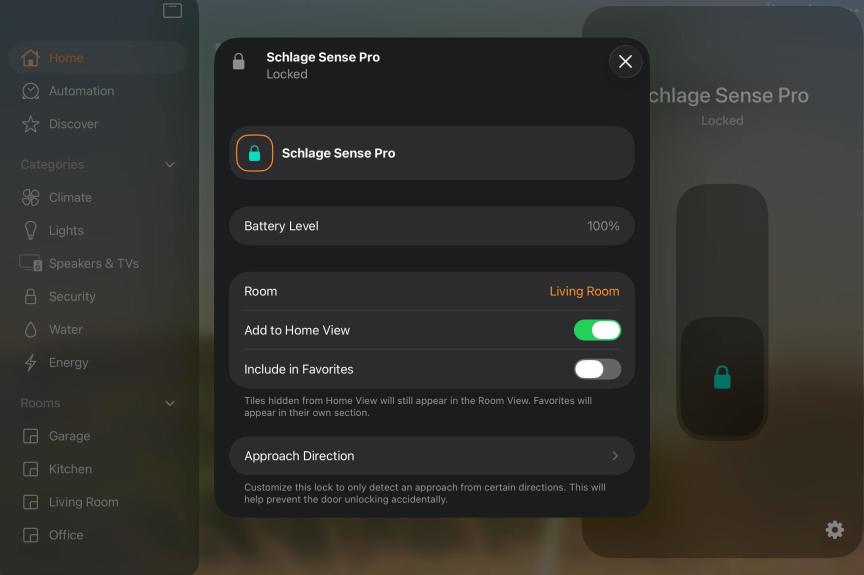
If you’re ready to take Siri commands to the next level, Apple Home also allows you to create scenes, or routines that combine multiple devices and commands into one. They can be a real timesaver if you set them up properly, allowing you to use commands like these.
“Hey Siri, I’m home” can start a routine that turns on lights, fans, music and even adjusts lamps to a certain shade while disarming the security system.
“Hey Siri, good morning” can begin a scene that turns on lights, stops nighttime fans, plays a wake-up song, bumps up the temperature and even turns on devices like a coffee maker connected to a smart plug.
“Hey Siri, I’m off to work” can arm security systems and sensors, lock the door, lower the thermostat to save money and close smart blinds to help keep the house cool while everyone is away, among other tricks.
If you’re interested in adding more Apple functionality to your home, head over to my guide on the best home security cameras that work with Apple, too.

See full bio
Read the full article here