



Over the last few years, Apple’s major iOS updates have introduced a lot of ways to customize your iPhone to better suit your preferences. One part of your device that has gotten more customization options than others is your lock screen.
When Apple released iOS 18 back in 2024, you were given the ability to remove or change the controls on your lock screen — a welcome improvement if you’ve ever accidentally turned on your flashlight while pocketing your phone. Then, iOS 26 let you move your lock screen widgets, increase the size of your clock and give your lock screen wallpaper a 3D spatial effect. Now, iOS 27 lets you shrink the size of your lock screen’s clock.
Here’s how to bring these changes to your lock screen and what to know about each one.
Change the size of your lock screen’s clock
With iOS 27, you can shrink or expand the size of your lock screen’s clock. Enabling tiny clock moves the time to to the top of your lock screen next to the date. The expanded clock takes up about a third of my iPhone 16 Pro’s screen at most, which I love because if I place my phone on a table, I can easily see the time, even without my glasses.
If you want the minuscule or big clock on your lock screen, you’ll have to enable either option. Here’s how to shrink your lock screen’s clock in iOS 27.
1. Tap Settings.
2. Tap Wallpaper.
3. Tap Customize under the lock screen you want to adjust.
4. Tap your clock.
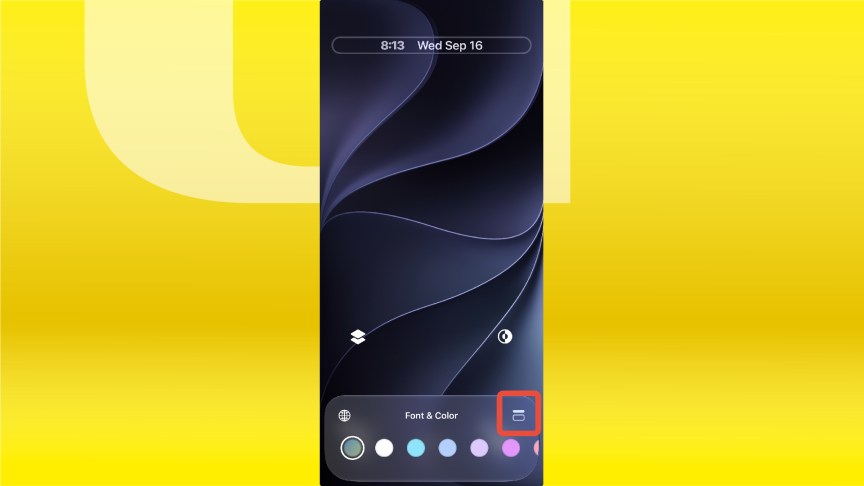
5. Tap the rectangle in the top right corner of the menu across the bottom of your screen.
 Screenshot by Zach McAuliffe/CNET
Your lock screen clock will then shrink and move to the bar across the top of your screen. Tap that same button and your clock will go back to the size it was before.
Here’s how to expand the clock on your lock screen.
1. Tap Settings.
2. Tap Wallpaper.
3. Tap Customize under the lock screen you want to adjust.
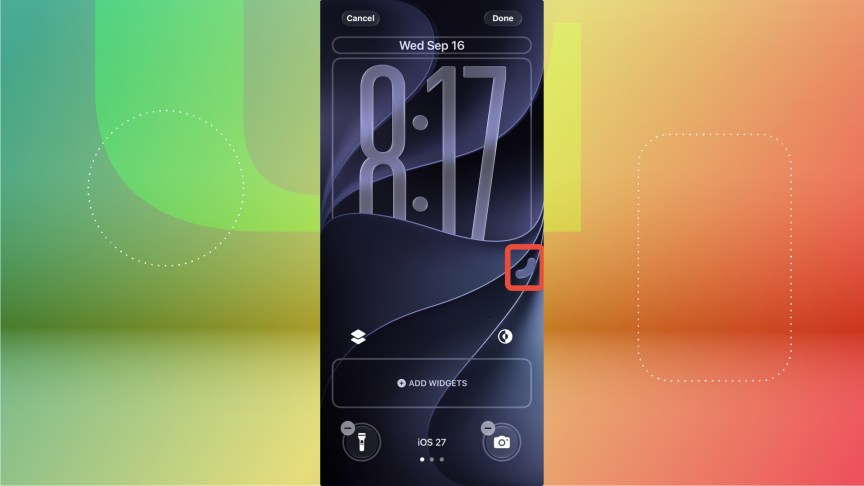
Your clock will have a thicker tab in the bottom right corner of its outline. Tap and drag this down to expand your clock to your desired size.
 Screenshot by Zach McAuliffe/CNET
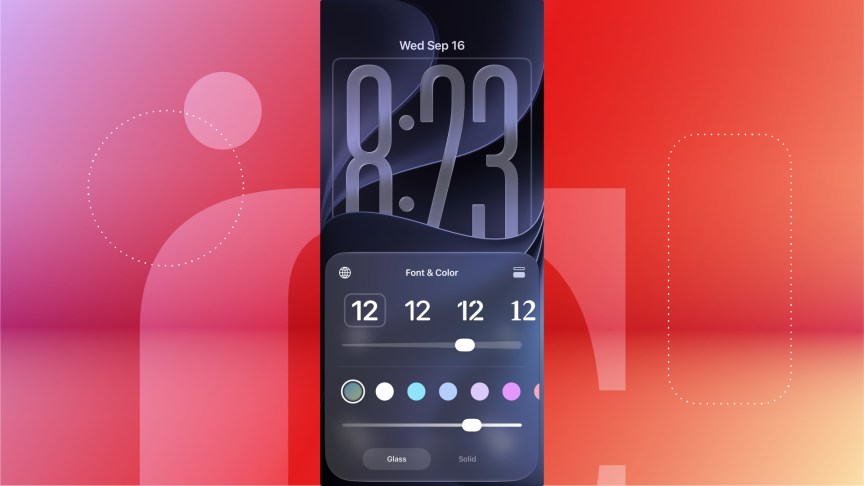
Then tap the clock to choose a Glass or Solid design, and adjust the color, thickness and opacity of the Liquid Glass design. It’s important to note after changing the clock’s size, you can’t change the font. Only the far left clock font can be expanded for now, but maybe Apple will expand this to other fonts in a future iOS update.
 Screenshot by Zach McAuliffe/CNET
Your lock screen’s widget dock can have a new home
You can also move your lock screen’s widget dock. This lets you place the dock near the bottom of your lock screen, right above your controls.
To move your lock screen’s widget dock, go to Settings > Wallpaper and tap Customize under the lock screen you want to adjust. Then, tap and drag the widget dock to the bottom of your lock screen.
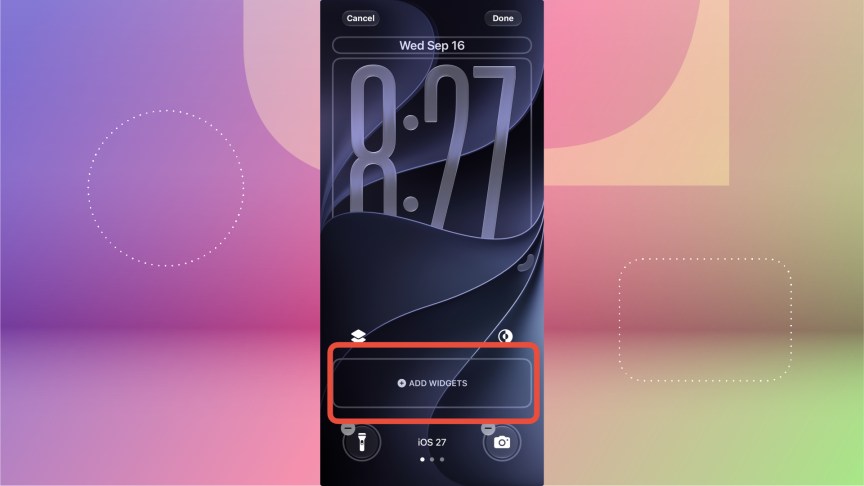 Screenshot by Zach McAuliffe/CNET
If you expand your lock screen’s clock, your widget dock will automatically be placed near the bottom of the screen, and you can’t place it anywhere else on your screen.
Spatial effects come to wallpapers
Your lock screen’s wallpaper also gets a fun, 3D effect that Apple calls a spatial scene. When enabled, spatial scenes add depth to elements in your wallpaper — and pictures — making them appear to pop out at you. As you move your iPhone around, those elements will move, too.
To turn your lock screen wallpaper into a spatial scene, go to Settings > Wallpaper, then tap Customize for the lock screen you want to work with. Tap the hexagon near the bottom-right corner of your screen, and your iPhone will turn the wallpaper into a spatial scene.
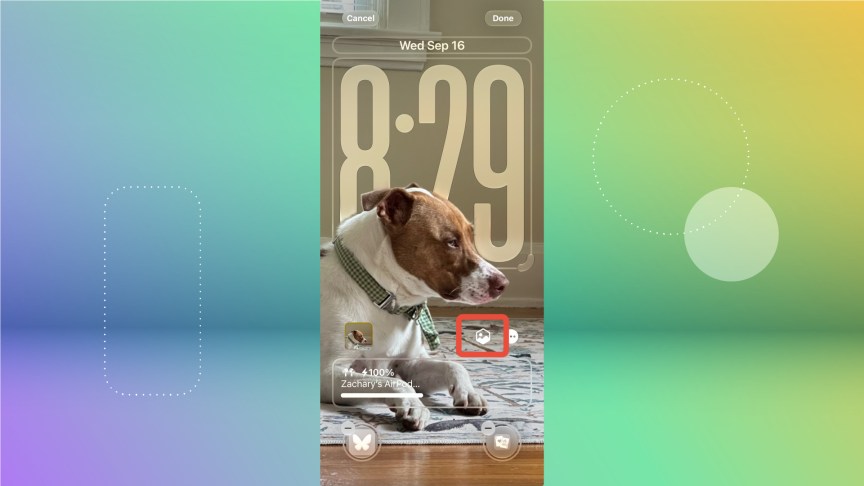 Screenshot by Zach McAuliffe/CNET
It’s important to note that spatial scenes only work with photos, not with the wallpapers Apple provides, such as those in the Weather and Emoji collections.
Controls get some color
A pretty small change iOS 26 brought to your lock screen is changing the color of the controls near the bottom of your screen. This change is enabled automatically, so you just have to add a colorful control, or create your own, to bring a pop of color to your lock screen.
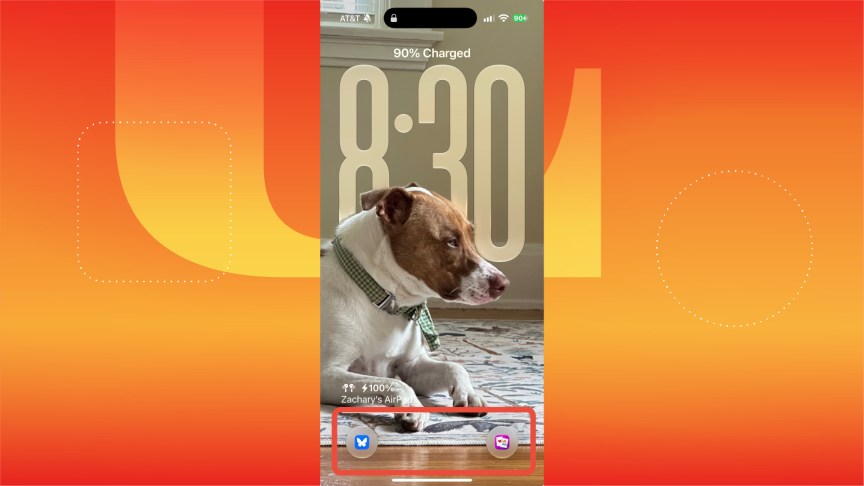 Screenshot by Zach McAuliffe/CNET
Make your lock screen your own
Apple has slowly loosened its grip on your iPhone’s lock screen, giving you more freedom to customize its appearance and how you use it over the years.
Being able to expand or shrink your clock, move the widget dock to more than one position and being able to give your wallpaper a 3D effect are just a few ways you can create your own experience on your iPhone. These features could be improved — like giving you more freedom in where you can place your widget dock — but I expect Apple to keep adding ways to customize your iPhone’s lock screen in the future.
For more on iOS, here’s what you should know iOS 27 and everything iOS 26 brought to your iPhone.

See full bio
Read the full article here