


The newest iPhone software, iOS 27, is rolling out this week. With it comes a new dose of Apple Intelligence, including Siri AI. But as CNET spotted this week, if you upgrade to iOS 27, you will lose your ability to disable Apple Intelligence with one main setting toggle.
The “Apple Intelligence & Siri” setting becomes just “Siri” with iOS 27. But there are still some ways to disable Apple’s AI if you don’t want to use the tools or have them eat up your storage space.
If your device is not running the newest software, turning off Apple Intelligence all at once only takes a few taps in Settings and doesn’t affect any core iPhone functionality. Here’s how to do it on iPhone, iPad and Mac.
How to turn off Apple Intelligence with iOS 27
You can still disable some of Apple’s AI features if your iPhone is running iOS 27. It just won’t be as easy as tapping the main toggle.
To disable Siri AI, go to Settings > Siri and toggle off the control. Beware, though, that this will disable your voice assistant entirely, as well as disable conversations in the new dedicated Siri app and block you from using Apple’s Visual Intelligence. Additionally, your HomePod speakers will not be able to recognize your voice or help with personal content if they’re on the same iCloud account as your iPhone.
Keep reading for how to disable some of the individual Apple AI features.
Why turn off Apple Intelligence in the first place?
Since the first Apple Intelligence features rolled out in iOS 18.1, some people have opted out of the new technology. Tools such as Image Playground, Genmoji and message summaries can use up to 7GB of your device’s internal storage — a sizable chunk, especially if you tend to run against the upper limit of its free space.
Even if storage is not an issue, you just may not be interested in Apple’s set of AI features. A recent CNET survey finds that just 19% of US smartphone owners are choosing to upgrade their devices to take advantage of new AI features. And a recent ZDNET/Aberdeen survey reveals that the majority of US adults say they will not use most AI features, and just 8% would consider paying extra for them. Some AI features are more welcome than others, with 58% of respondents saying using AI for photo editing would be valuable.
Or, honestly, you may not want to deal with features that are creating inaccurate summaries or that can be replicated without Apple Intelligence.
The trainer killed someone?
Nelson Aguilar/CNET
(Earlier iOS 18 updates re-enabled Apple Intelligence automatically even if you had turned it off, but as of iOS 18.4, the setting is honored.)
Did a well-meaning friend send you a message about Apple Intelligence possibly reading your private information? Here’s what’s actually going on.
Is Apple Intelligence really ready to be on by default?
I’m not an AI crank — I appreciate features such as notification summaries and the Clean Up tool in the Photos app. And yet, Apple Intelligence is also a work in progress, an evolving set of features that Apple is heavily hyping while gradually developing. I wouldn’t hold it against you if you wanted to not be distracted or feel like you’re doing Apple’s testing for them (that’s what the developer and public betas should be for).
Remember that Apple Intelligence works only on the new iPhone 18 lineup, the iPhone Duo, iPhone 17, iPhone 17 Pro, iPhone Air, iPhone 17E, iPhone 16, iPhone 16E, iPhone 16 Pro, iPhone 15 Pro or M-series Macs and iPads, plus the newest iPad mini.

How to see the amount of storage Apple Intelligence is using
If you’re concerned about the storage requirements of Apple Intelligence, you can find out how much the system is using by going to Settings > General > iPhone (or iPad) Storage > iOS (or iPadOS).
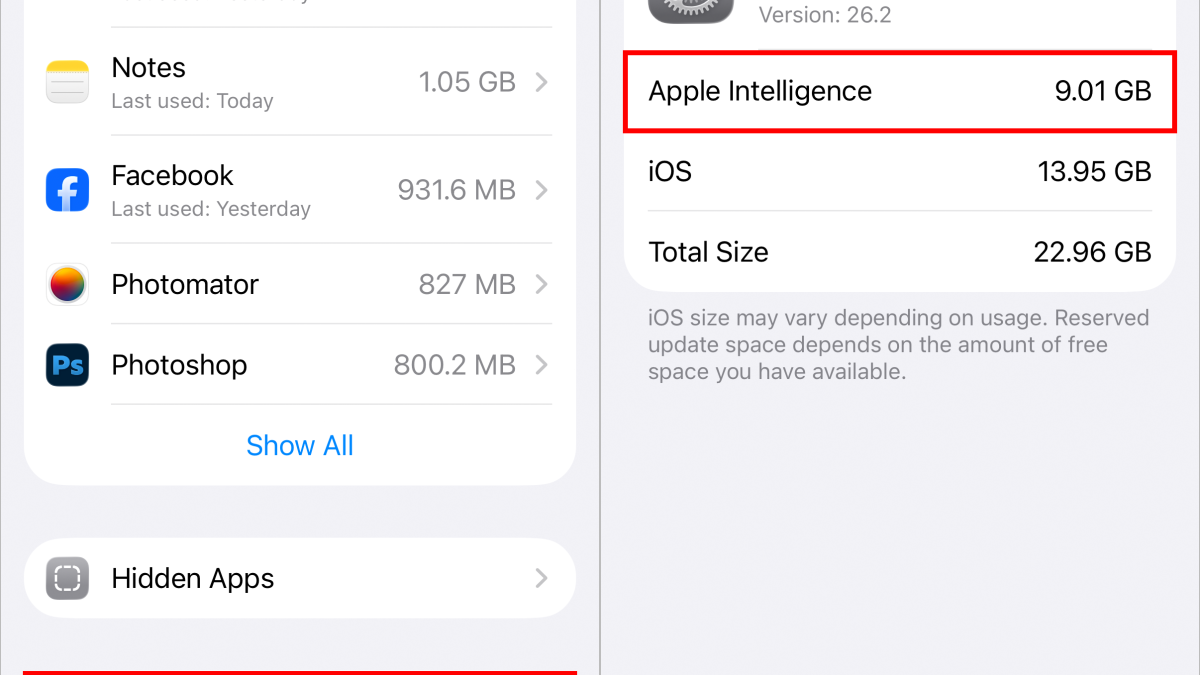
See how much space Apple Intelligence is using in Settings. This is what it looks like running iOS 26, but the settings flow is the same.
Screenshots by Jeff Carlson/CNET
Note that even after turning off Apple Intelligence, the storage still shows up in the iOS Storage list. However, I was able to confirm that if the phone’s storage fills up and the system needs that now-inactive space, iOS reclaims what it needs.
How to turn off individual Apple Intelligence features
Maybe you’re finding some Apple Intelligence features helpful while others are annoying (or just highly amusing). You can turn off specific features in the settings for apps to which they apply.
For example, to disable text summaries in Messages notifications, go to Settings > Apps > Messages and switch off the Summarize Messages option.
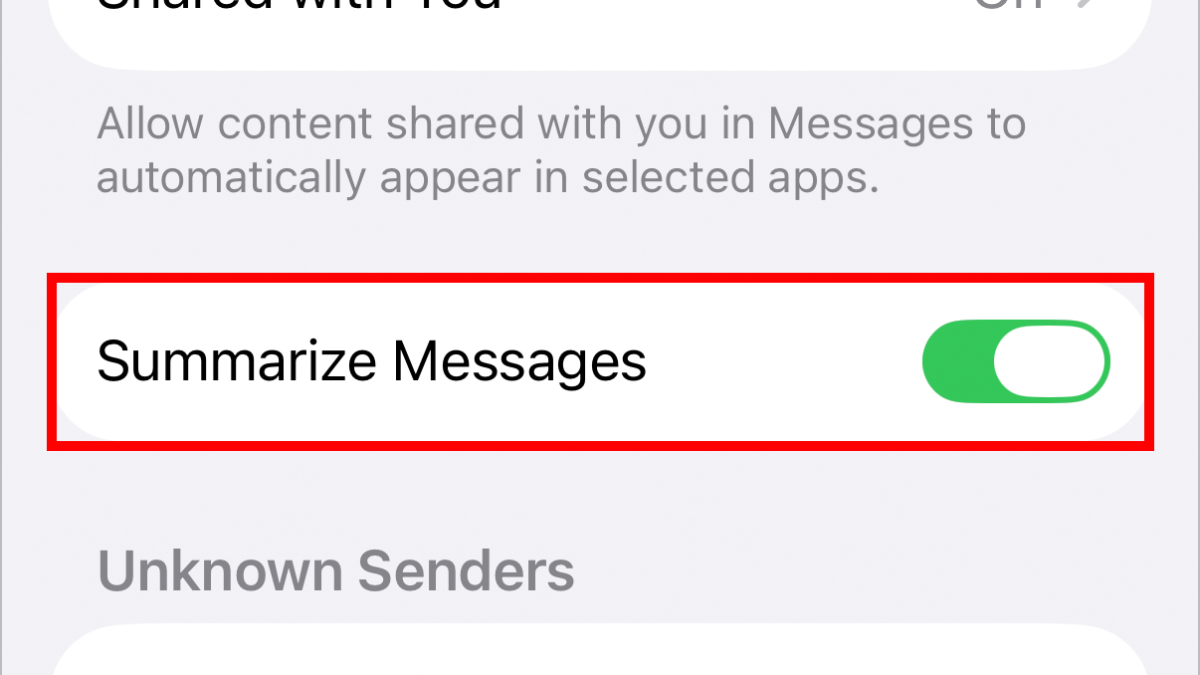
Turn off Messages summaries while still using other Apple Intelligence features.
Screenshot by Jeff Carlson/CNET
Some features are not as app-specific. Writing Tools, which use Apple Intelligence to proof or rewrite text, appear as an option when you select text, regardless of the app. To turn that off, you need to disable Apple Intelligence system-wide.
Also note that nearly every app includes an “Apple Intelligence & Siri” option in Settings, with a Learn from this App option (turned on by default). That applies just to whether Apple Intelligence and Siri can monitor how you use it to make suggestions; it doesn’t affect any particular Apple Intelligence features.
How to turn off Apple Intelligence features in Screen Time settings
Another option for restricting what Apple Intelligence can do is buried in the Screen Time settings. Screen Time is designed to control which apps and features can run on another device, such as the iPhone used by a child in your household. But it’s also helpful for tracking how much time you’re spending on the device and, in this case, turning off some components of Apple Intelligence.
- Open the Settings app and go to Screen Time > Content & Privacy Restrictions.
- Turn on the Content & Privacy Restrictions option if it’s not already enabled. If this is the first time you’re flipping this switch, don’t worry — everything is allowed by default.
- Tap Intelligence & Siri.
- Tap on the following three features and decide whether to allow or don’t allow their use: Image Creation (such as Image Playground and Genmoji), Writing Tools and the ChatGPT Extension (which uses ChatGPT to process requests that are beyond the built-in Apple Intelligence capabilities).
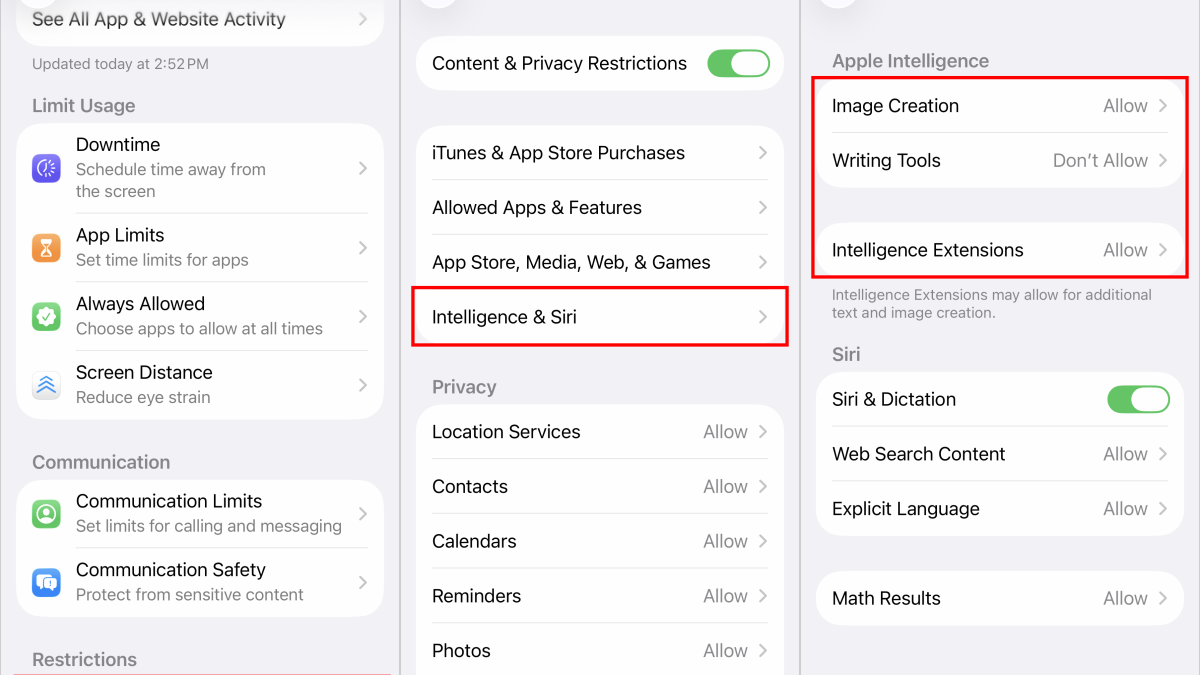
Turn off selected Apple Intelligence features in the Screen Time settings. This is what the settings look like with iOS 26. It may look different if you are using iOS 27. The settings flow is the same.
Screenshots by Jeff Carlson/CNET
If you haven’t upgraded to iOS 27 yet, make a good backup first.
How to turn off Apple Intelligence entirely (iPhone, iPad and Mac) if you aren’t on iOS 27
If you aren’t on iOS 27, you can turn off Apple Intelligence with one tap. (You can see what software your iPhone is running by going to Settings > General > About and seeing what iOS version you’re running.)
If you’re on iOS 26 or earlier, here’s how to disable Apple Intelligence. Open Settings (iPhone or iPad) or System Settings (Mac) and choose Apple Intelligence & Siri. Then turn off the Apple Intelligence option. Confirm your choice in the dialog that appears by tapping Turn Off Apple Intelligence.
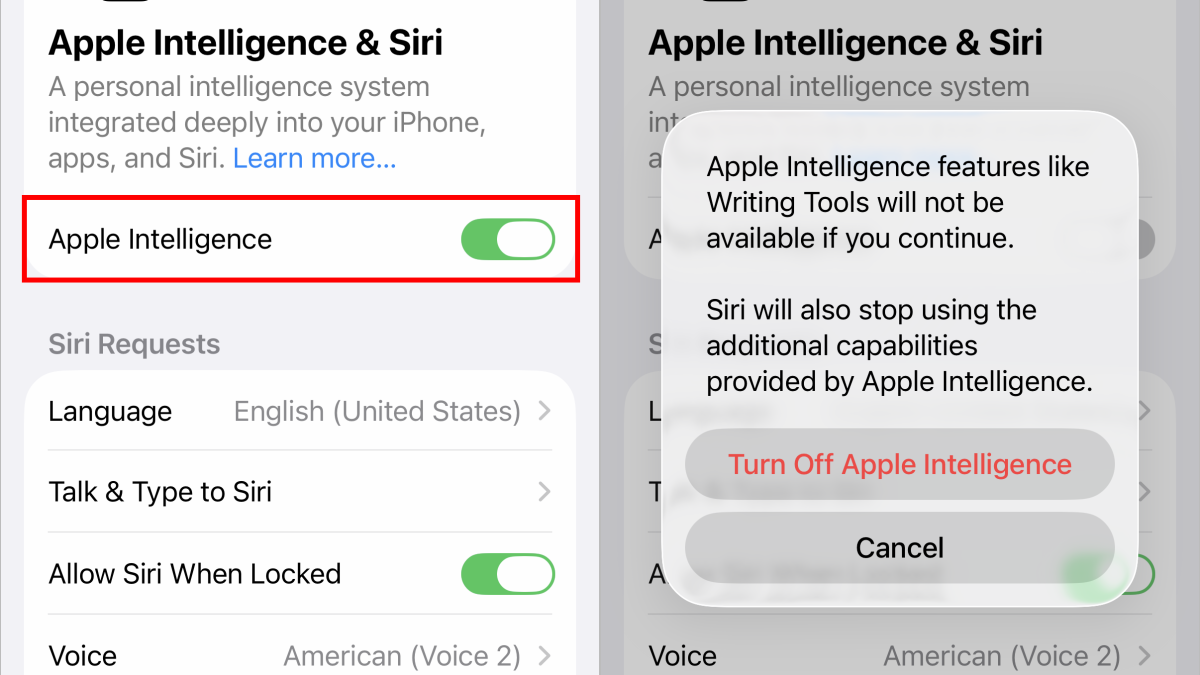
Turn off Apple Intelligence entirely with one switch if you are running iOS 26 or an earlier software version.
Screenshots by Jeff Carlson/CNET
Here’s what you lose:
Curiously, the Clean Up tool in Photos sticks around even when Apple Intelligence is turned off, perhaps because the first time you use it the app downloads resources for it and holds onto them.

See full bio
Read the full article here