


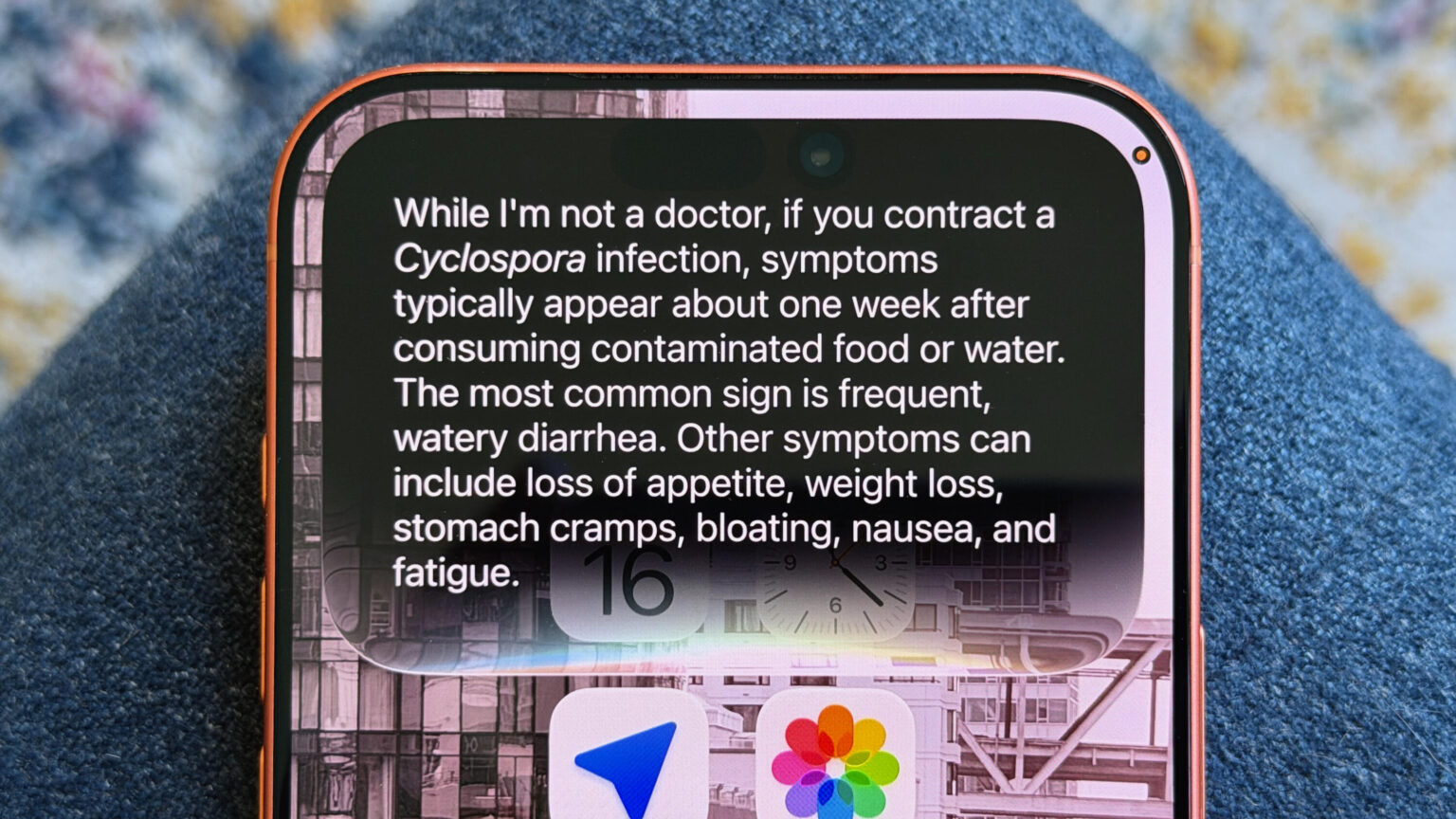
As always, I don’t love every new feature that iOS has to offer. Here are five features on iOS 27 I find annoying, and how you can tweak them.
Patrick Holland/CNET
Apple’s iOS 27 public beta is now available, giving anyone with a compatible iPhone an early look at the software update coming later this year. You can sign up through the Apple Beta Software Program, though you should back up your iPhone before installing any prerelease software.
The update brings faster performance, new AI photo editing tools and a much more capable version of Siri. Siri AI can search through your messages, emails and photos, understand what’s on your screen and perform actions across apps. There’s also a dedicated Siri app that saves your conversations and syncs them across your Apple devices.
Win a New Apple Watch in CNET Big Guessing Game Contest
Some of those additions are useful, but a few can quickly get annoying. Siri now appears in more places and its app keeps conversations forever by default. Liquid Glass also remains a major part of the iPhone’s look, whether you love all that transparency or struggle to read through it.
Fortunately, you can change many of these settings. Keep in mind that the following instructions are based on the first iOS 27 public beta, so Apple may move or rename some options before the final release this fall.
Make Liquid Glass easier to read
Apple introduced Liquid Glass with iOS 26, giving menus, buttons, notifications and other interface elements a translucent appearance. Not everyone was a fan of the new design, and with iOS 27, you now get more control over exactly how transparent the interface looks.
Go to Settings > Appearance > Liquid Glass. Drag the slider to the right to add more tint and opacity, making buttons and text easier to distinguish from whatever is behind them. Moving it left makes the interface more transparent.
If the most opaque setting still isn’t enough, go to Settings > Accessibility > Display & Text Size and turn on Reduce Transparency. This makes translucent backgrounds more solid across iOS, although it overrides the regular Liquid Glass appearance controls.
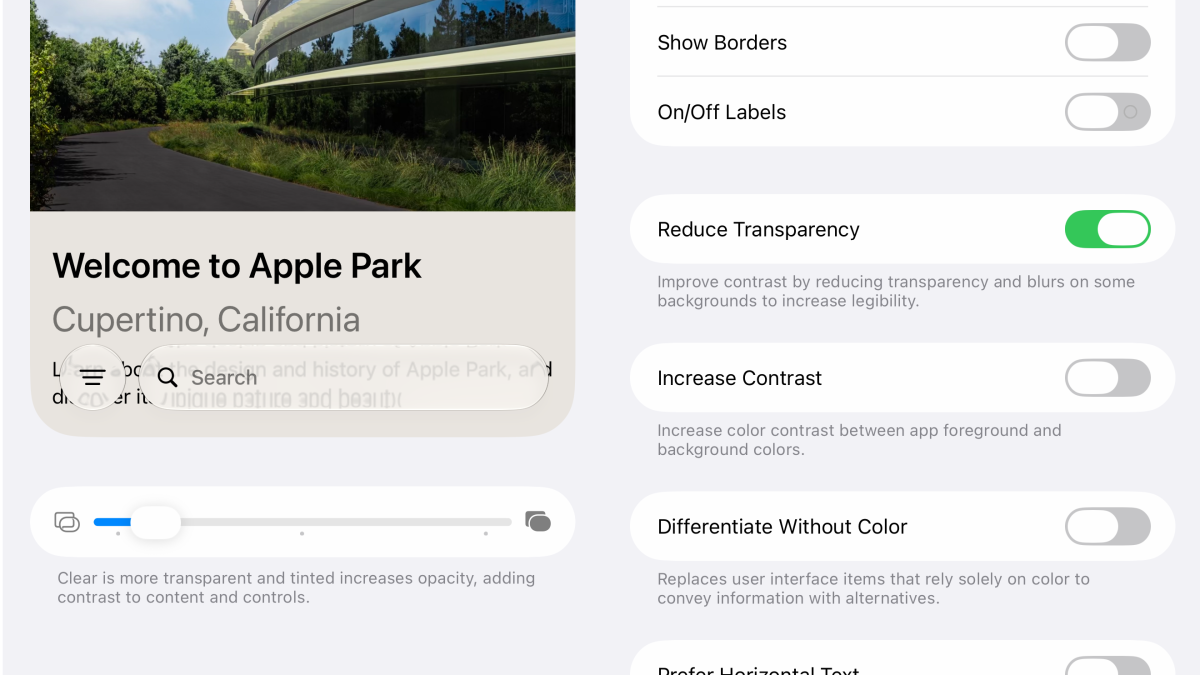
More tint makes Liquid Glass easier to read.
Nelson Aguilar/CNET
Stop Siri from keeping your conversations forever
I’ve only been using the new Siri AI since it was released with the developer beta back in June, but I quickly learned that it works more like a chatbot, such as ChatGPT or Claude, in iOS 27. It now comes complete with a dedicated app where you can revisit previous conversations. Those chats sync through iCloud so you can start a conversation on your iPhone and continue it on another Apple device, such as your Mac.
By default, the current beta keeps those conversations forever, but there is a way to automatically get rid of older conversations if you don’t want them piling up.
If you don’t need a permanent archive of everything you ask Siri, go to Settings > Siri > Keep Conversations and choose 30 Days or 1 Year. Selecting either option permanently deletes conversations beyond that timeframe.
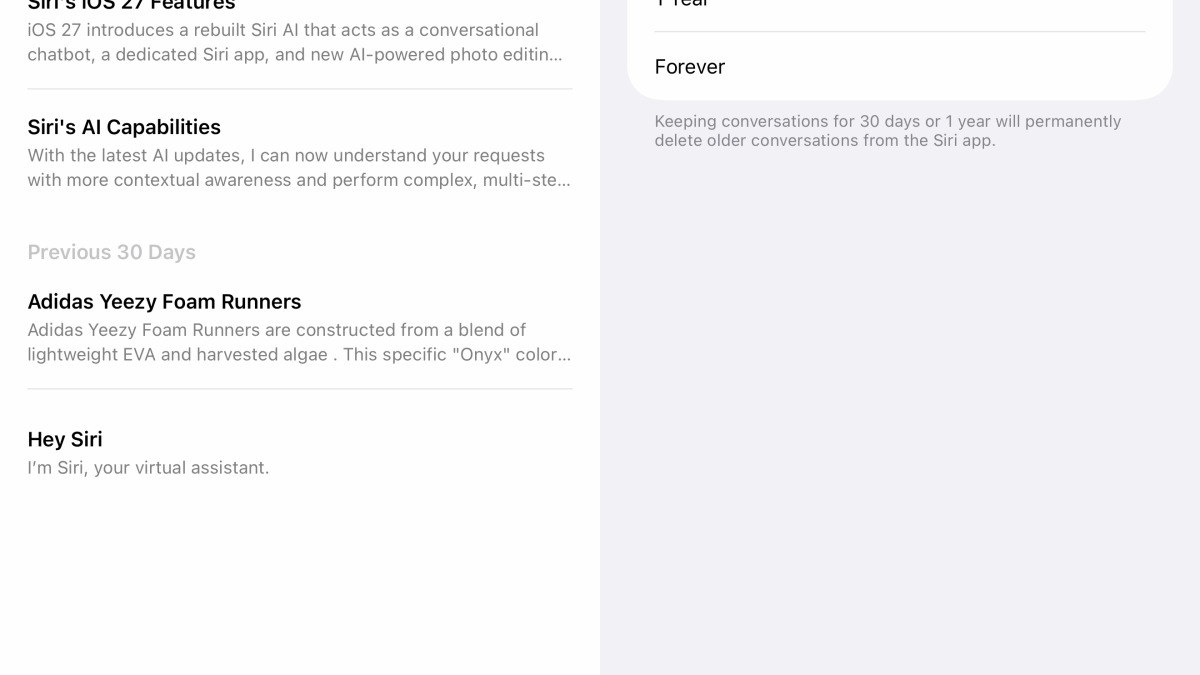
Siri keeps your conversations forever unless you choose a shorter limit.
Nelson Aguilar/CNET
While you’re there, tap Opens To and select A New Conversation if you want the Siri app to open with a blank chat instead of showing your recent conversations every time.
Siri AI requires an iPhone 15 Pro or 15 Pro Max, iPhone Air or an iPhone 16 or later.
Turn off Write with Siri if you never use it
iOS 27 puts a new Write with Siri button above the keyboard in apps including Messages, Mail and Notes. You can ask Siri AI to draft something from scratch, proofread what you’ve written or rewrite it in a different tone.
The thing is, I’m not a big fan of the AI writing tools, so I don’t use them at all.
If you prefer writing without the extra AI prompt like I do, you can restrict Siri’s writing features by using Screen Time. Go to Settings > Screen Time > Content & Privacy Restrictions, turn on the restriction and then tap Siri > Writing Assistance > Don’t Allow.
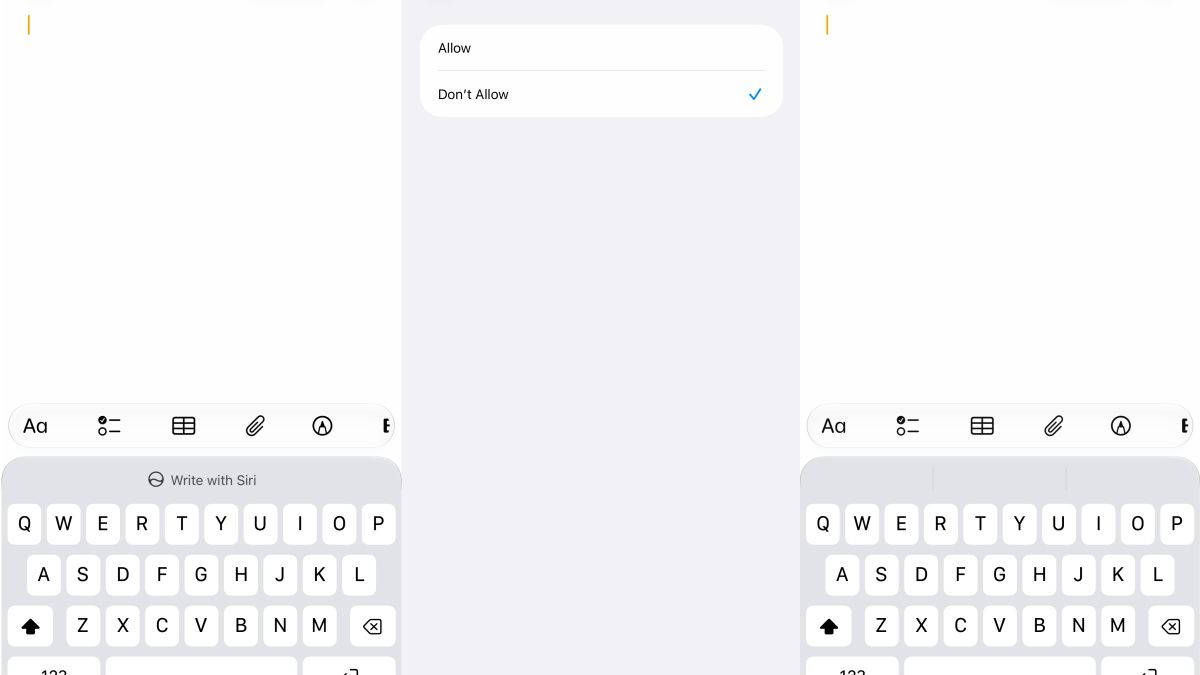
Screen Time lets you completely disable Siri’s writing tools.
Nelson Aguilar/CNET
This disables access to the writing tools across your iPhone, rather than simply hiding the keyboard button, so only do this if you don’t use Apple’s AI writing tools at all. You can return to the same menu and choose Allow if you want them back. Apple documents the restriction under its Apple Intelligence Screen Time controls.
Stop Siri from activating so easily
Introduced back in iOS 17, Siri can now wake up when you simply say “Siri” instead of “Hey Siri.” The one-word command is convenient, but it also makes accidental activations more likely whenever someone says Siri’s name in a conversation or a video they’re watching online.
Siri goes absolutely bonkers whenever I’m in work meetings about Apple features.
To disable the feature, go to Settings > Siri > Talk to Siri. Choose “Hey Siri” instead of “Siri.”
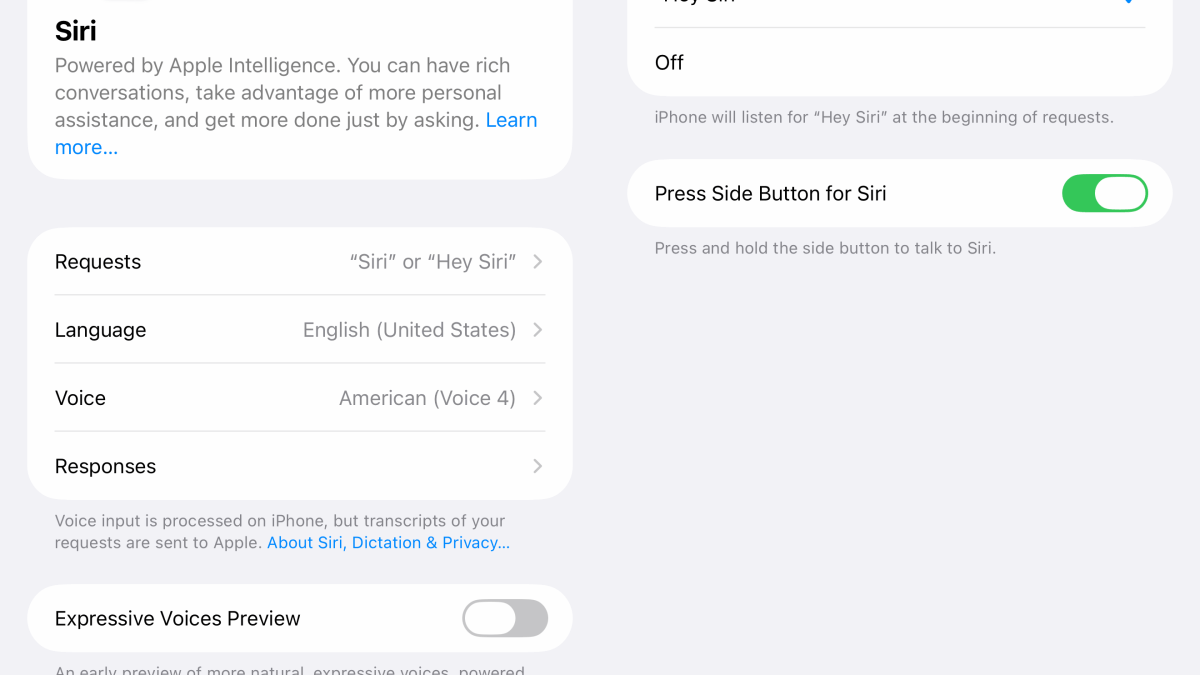
Requiring “Hey Siri” can help prevent accidental activations.
Nelson Aguilar/CNET
You’ll still be able to bring up Siri with your voice, but the extra word makes it less likely to wake up when you aren’t talking to it directly.
This isn’t exclusive to iOS 27, but it’s been annoying me more recently, so thought I would throw it in here, especially with Siri AI being the prominent feature on this update.
Stop subtitles from automatically appearing in videos
iOS 27 now automatically shows subtitles on videos in Photos, Safari and other apps that use Apple’s video player. I don’t mind captions when I need them, but they can take up too much of the video and distract me from whatever I’m watching.
They don’t appear randomly though. By default, iOS can turn them on when the video is in another language, when your iPhone is muted or when you skip back.
Whenever subtitles appear in Apple’s video player, you can tap the video to show the playback controls, tap the More Controls button, select Subtitles and choose Off.

You can disable subtitles per video.
Nelson Aguilar/CNET
If iOS keeps turning them on because it thinks the video is in another language, go to Settings > Accessibility > Subtitles & Captioning. Under Automatic Subtitles, turn off When Languages Don’t Match.
The same menu also has switches for Show When Muted and Show on Skip Back, so you can disable those behaviors individually without turning off every automatic subtitle feature.
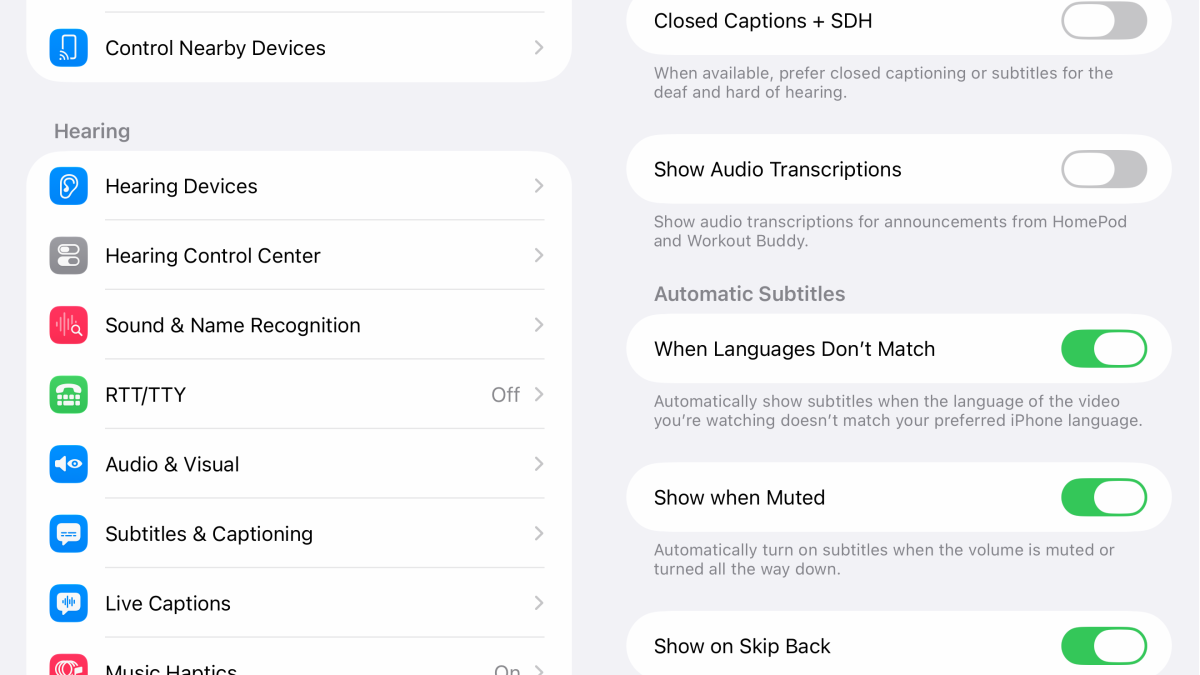
You can also disable each automatic subtitle trigger individually.
Nelson Aguilar/CNET
Some apps and websites use their own video players, so you may need to find a separate CC or subtitles button instead.
For more on iOS 27, check out this article on the first iOS 27 public beta, the features it brings to your iPhone and how Siri AI helped one of my colleagues avoid eating diarrhea lettuce.

See full bio
Read the full article here